Productivity
The Productivity view provides a clear and interactive overview of daily machine activity. It helps you assess how efficiently material handling and job scheduling performed and whether the production day ran smoothly. Depending on the time frame selected in the global filter, multiple day-selection chips may be shown. The yellow chip indicates the currently selected day displayed in the chart.
In the top-right corner of the chart, you can enable additional overlays to add more context to the timeline:
- On Time: Highlights the periods when the printer was initialized.
- Shift Plan: Displays the configured shifts the printer was running during the day.
- Service Mode: Shows when the printer was in service mode.
If no shift plan is visible, it may be because none has been configured for the selected printer.
Please refer to the Shift Plan Setup Guide to learn how to define one.
The chart is zoomable along the x-axis, allowing you to analyze specific time ranges in more detail. Use the Reset Zoom button in the bottom-right corner to return to the full-day view.
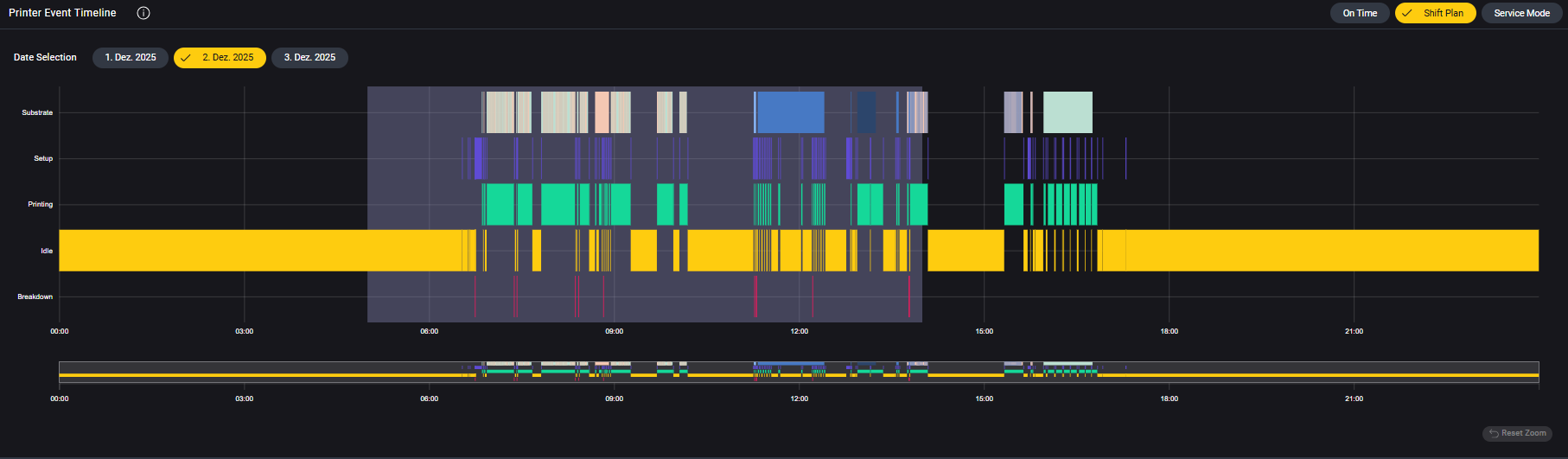
Chart Description
- X-Axis: Displays the time of day (24-hour format).
- Y-Axis: Contains five horizontal bars:
- Substrate: Material used over time (top bar).
- Setup
- Printing
- Idle
- Breakdown
The last four bars represent mutually exclusive machine statuses, meaning the printer can only be in one of these states at any given time.
The top bar shows the substrates used throughout the day. Substrates with the same ID are colored consistently to visualize material changes. Frequent changes between substrates may indicate poor job grouping and present opportunities to optimize scheduling.
Shift Plan and Service Mode Overlay
In the upper-right corner, you’ll find a toggle switch:
- Shift Plan: Displays transparent background shading in colors corresponding to your defined shifts. This helps you assess printer usage across different shifts.
- Service Mode: Shows a red transparent overlay for periods with active service interventions, highlighting time lost due to maintenance or troubleshooting.
If no shift plan is visible, it may be because none has been configured for the selected printer.
Please refer to the Shift Plan Setup Guide to learn how to define one.
Interactive Features
-
Hover Over:
- Setup and Idle bars: Shows start time, end time, and duration.
- Substrate bar: Shows material start time, end time, name, width, and length.
- Printing and Breakdown bars: Shows start/end time and opens an overlay on click:
- Printing: Displays job details and printed quantity.
- Breakdown: Displays related error or fault messages.
-
Zoom and Navigation:
- You can zoom into specific time ranges in the timeline.
- Use the Reset Zoom button in the bottom-right corner to return to the full-day view.