Shift / Production Time
This feature allows you to define the machine’s Production Time according to your actual work schedule.
Once configured, it enables filtering machine performance based on these time ranges, giving a detailed view of each shift.
While this chapter mainly focuses on setup, once active, the shift plan integrates with the Productivity section in the Overview, providing:
- Performance KPIs for each shift
- A more structured printer timeline view
The Shift setup needs to be done for each printer individually on the collector.
Header
At the top of this section, if a shift plan already exists, you will see its start date and end date.
You have the following options:
- Create a new shift plan
- View the shift plan history
- Select and configure up to 4 available shift types (chips)

Each shift plan only requires a start date. Plans continue indefinitely until a new one is scheduled.
If the end date is shown as unlimited, it means no upcoming shift plan is currently defined.
If an end date is displayed, it indicates that a new shift plan will begin from that point onward.
Calendar
The calendar view always displays Monday to Sunday, representing a typical workweek.
The configured shift plan will repeat weekly based on this layout.
You can define up to 4 shifts per day. These shift colors are used throughout the UI wherever shift-based data appears.
To assign shifts:
- Click a shift chip in the header.
- Click and drag within the day column to draw the shift range.
- Use drag handles to adjust start or end times.
Alternatively:
- Click on a shift block.
- Hover over it and click the icons in the top-right corner:
- One icon opens a form to set start time, end time, and shift name.
- The other deletes the shift.
Once setup is complete, click Save to store the shift plan.
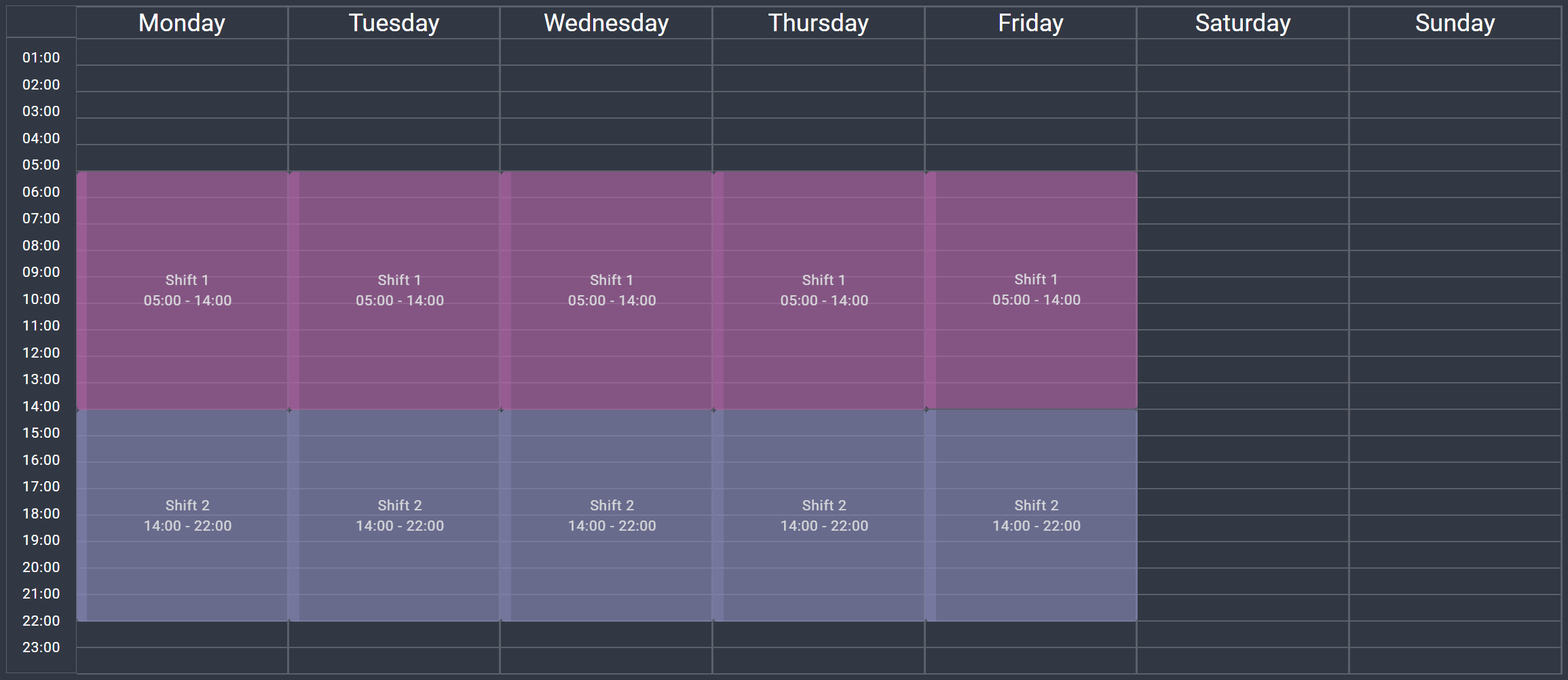
You can create and save shift plans in advance.
They will automatically take effect on their specified start dates.
History
Click the History button in the header to view and manage all past shift plans.
You can:
- Load previous shift plans into the calendar
- Modify and save them if needed
If you modify a shift plan that has already started, the system will display a warning before allowing you to save and recalculate historical data.
If the selected plan hasn't started yet, no warning is shown.
After saving, the UI will automatically return to the current active plan.
Modifying a historical shift plan will impact previous data calculations.
Please note that any exported PDF reports based on the affected time range may no longer be valid.