Printers
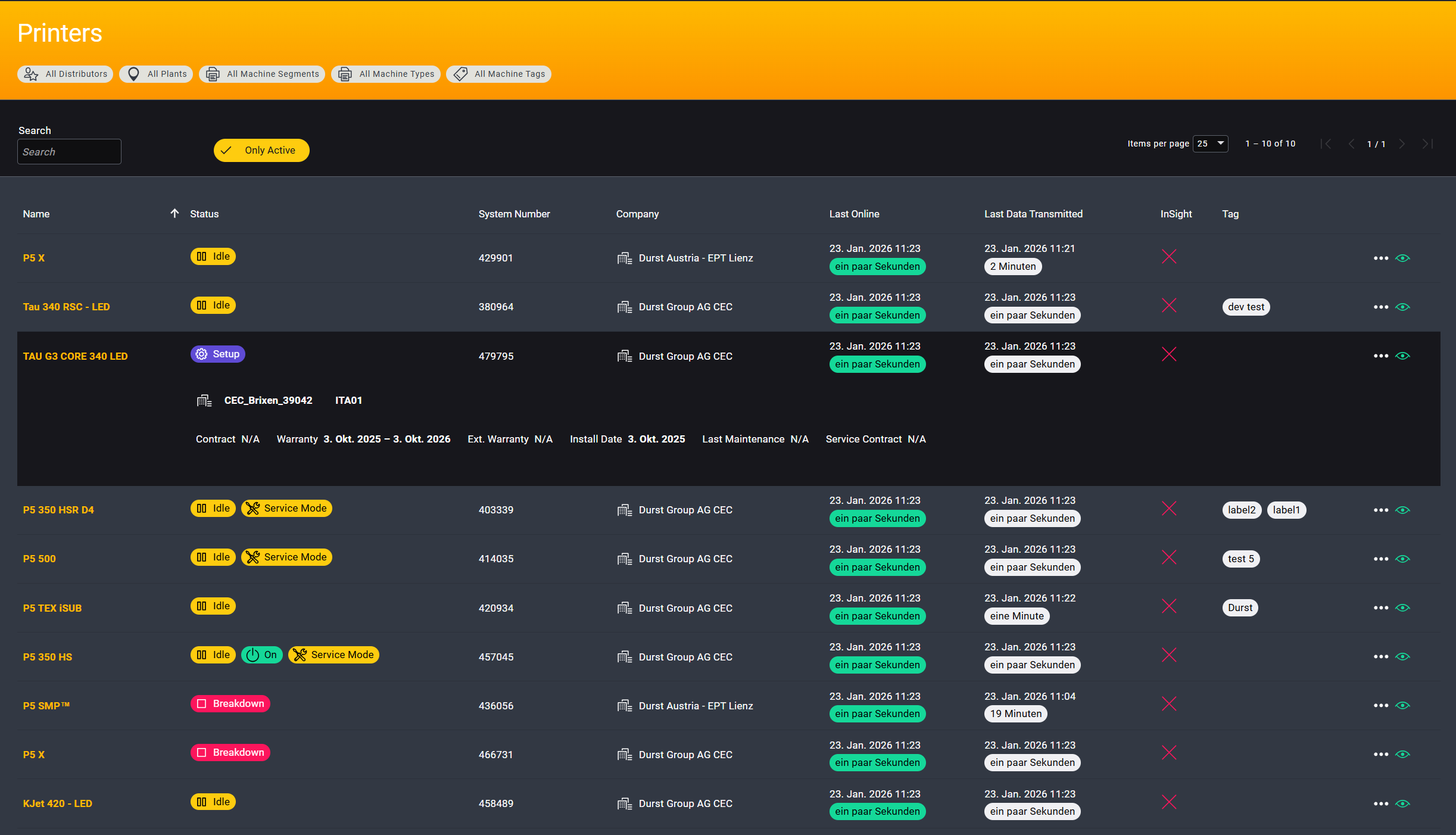
The Printers page provides a tabular overview of all printers in the system, including their current status and additional relevant information.
Users with admin permissions can rename printers, assign tags, and define whether print job titles are pseudo-anonymized.
Header
The header section includes a search bar, filter options, and pagination controls.
Depending on the user's permissions, the Active filter can be adjusted. If the user doesn't have sufficient permissions, the list defaults to displaying active printers only.
A full-text search is available for the following fields:
- Printer name
- System number
- Company
Printer List
The printer list displays all printers that match the current global filter criteria.
Selecting a printer opens a detailed view with additional information, such as:
- Warranty period
- Last maintenance date
- Additional technical and administrative details
Printer Settings
Admin users can open the printer settings by clicking the ⋯ icon next to a printer and selecting Edit.
An overlay dialog appears, allowing the following settings to be modified:
- Printer name
- Assigned tags
- Print job title pseudonymization
These settings are sent to the on-site Durst Analytics Collector and applied to the corresponding printer.
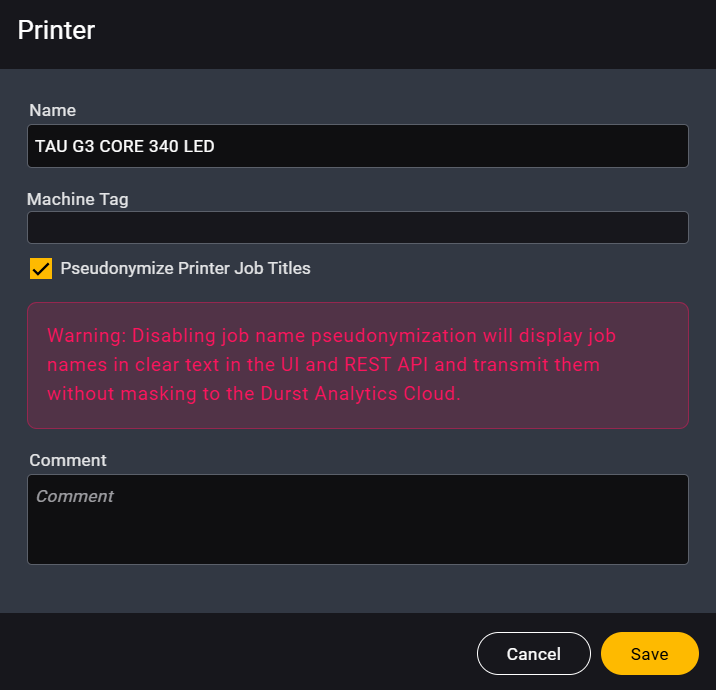
Disabling print job title pseudonymization will display job names in clear text in both the UI and the REST API. The job names will also be transmitted to the Durst Analytics Cloud without masking.
Before disabling this option, ensure that it complies with your company's data privacy policies and that job names don't contain sensitive information.