Printer Details Header
The Printer Details Header provides key contextual information and controls that apply across all sections of the printer details page. It includes the current printer status, essential identifiers like system number, machine type, timezone, and global filter settings.
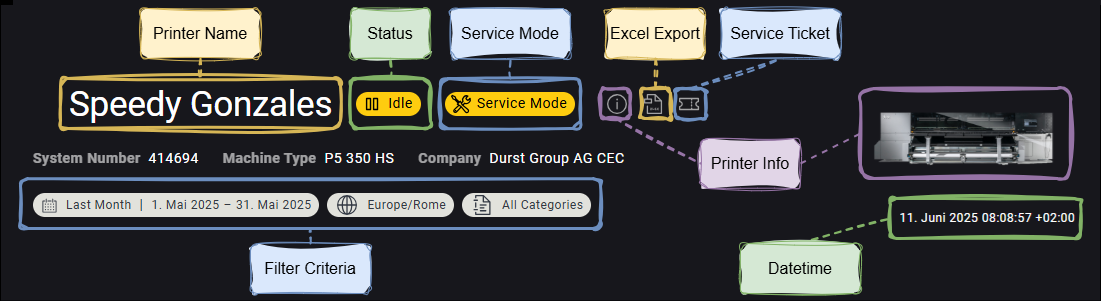
Printer Name
Displays the name of the printer.
The printer name defaults to the machine type but can be changed in the printer settings.
Status
Indicates the current printer status:
| Icon | Description |
|---|---|
 | The printer is actively printing a job. |
 | The printer is online and ready, but not currently printing. |
 | The printer is preparing for a job (for example: loading material, purging ink). |
 | The printer is in an error state and requires attention. |
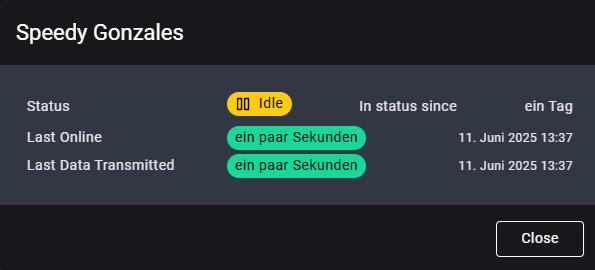
Clicking the status icon opens a detailed overlay showing the current state, the time since the printer entered it, the Last Online timestamp, and Last Data Transmitted info.
ON/OFF Status
If the printer reports its ON/OFF state, an additional indicator is shown between the Status and Service Mode icons.
This indicator reflects whether the printer is currently initialized ON or in shut down OFF.
For printers that provide this information, performance metrics can be filtered to include only the effective time the printer was powered on. This allows analyses to focus exclusively on periods when the printer was operational.
Service Mode
Indicates if the printer is currently in  Service Mode, which can only be activated by a Durst technician or authorized service partner.
Hovering over the icon shows a tooltip with the start date and time of service mode.
Excel Export
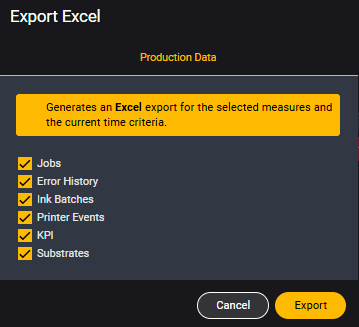
Clicking the Excel Export icon opens an overlay to export the data currently selected in the Filter Criteria to an Excel file.
In the overlay, you can select which data to include:
Service Ticket
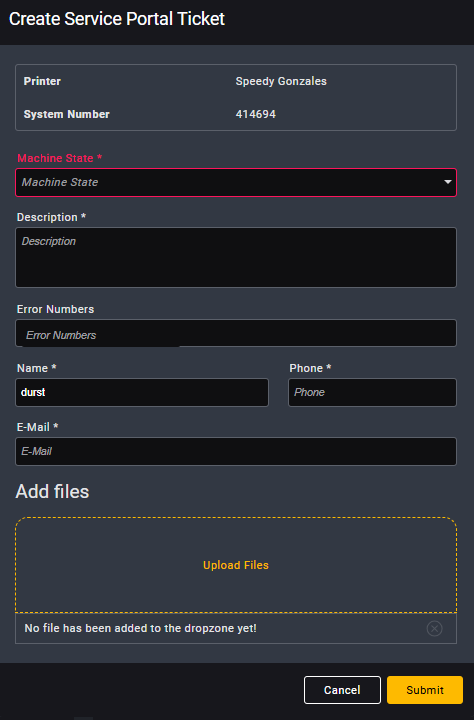
Clicking the Service Ticket icon opens an overlay to create a new service ticket for Durst support.
You can provide issue details and attach relevant files or screenshots:
Printer Info
Clicking the  icon or printer image opens a detailed overlay with comprehensive system information:
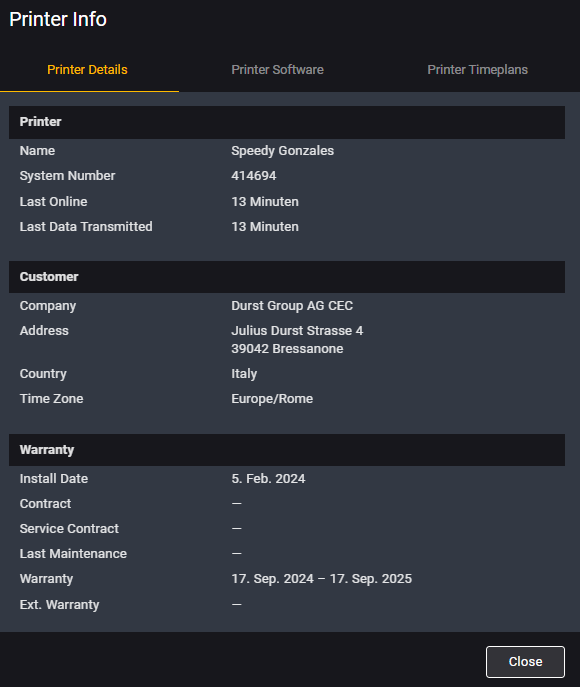
Printer Details
Includes the system number, machine type, and timezone, along with:
- Printer location
- Ownership information
- Warranty and contract details
- Service agreements
Printer Software
Lists all installed software versions, including:
- Printer software
- Firmware for internal components
Printer Timeplans
Displays all active Timeplans configured for the printer.
Filter Criteria
The Filter Criteria display the currently applied filters for the data shown and apply globally across all sections of the printer details page. Clicking the filter opens an overlay where you can adjust the Time Frame and Job Categories.
The time zone is always aligned with the printer’s local time, and this is also shown in the header:
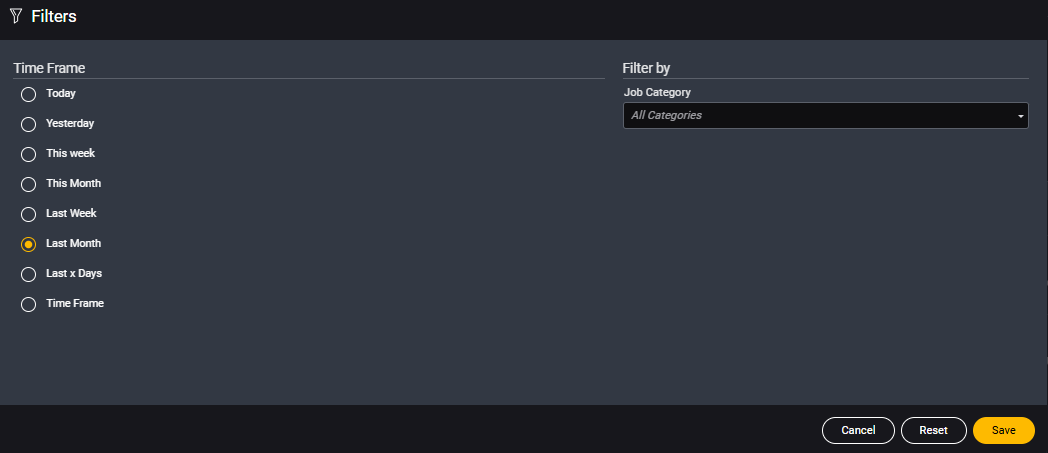
Time Frame
You can choose from a set of predefined options (for example: Today, This Week, Last Month) or use one of the two flexible options:
-
Last x Days
Enter a custom number of days (up to 365) to view data from the past N days ending today. -
Custom Time Frame Select any date range using the calendar popup. The range can start anytime in the past, even over 10 years ago, but must not exceed 365 days in total.
365 Days LimitThe selected range must be 365 days or less, regardless of how far back the start date is.
Job Categories
The available job categories depend on your machine type and printer software version.
You can filter the data by selecting one or more of the following categories:
- Order: Standard production jobs sent from Durst Workflow to the printer as part of a customer order.
- Test: Jobs used for quality checks, calibration, or printhead alignment.
- Profiling: Jobs initiated by Durst Workflow to generate new profiles for substrates or inks.
- Proofing: Jobs marked as proofing within the printer software, typically used to verify a print before running the full order.
- Setup: Configuration jobs such as alignment or initialization routines required to prepare the printer.
- Undefined: A fallback category for jobs that don’t match any of the predefined types above or aren't categorized.
Datetime
The Datetime displayed in the header reflects the printer’s local time and its UTC offset.
Machine Identifiers
The System Number, Machine Type, and Company are shown prominently in the header to help quickly identify the printer.
These values aren't labeled in the example image above but are clearly visible in the UI.